AI selfie editor for light and color.
Adjust the direction of a selfie edit: lift a shadowed face, revisit color, try monochrome or request subtle brow definition. Start with the original and keep the change focused.
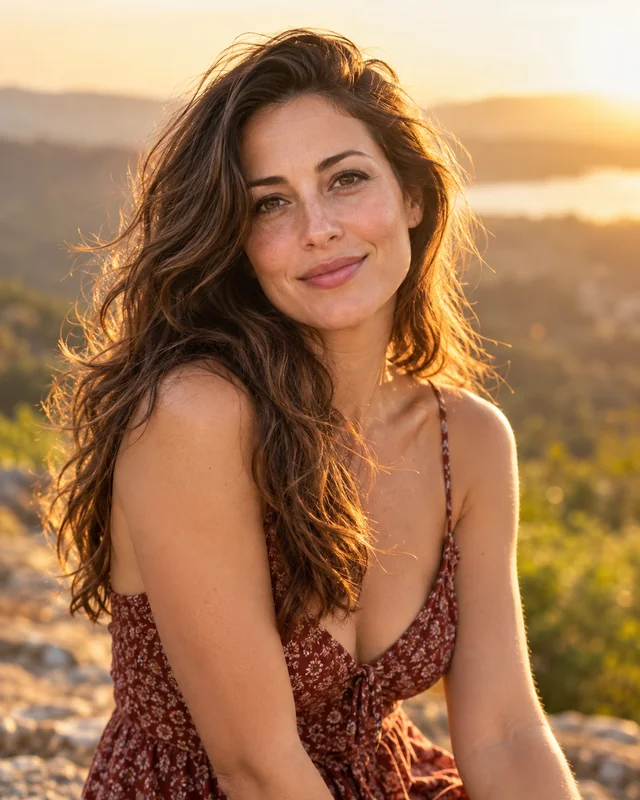
Pick the light or color you want to revisit
Backlight rescue requests a gentle lift to a shadowed face, while true-to-life color aims to reduce an unwanted color cast. Natural light and soft polish offer broader changes to exposure and finish. Choose the direction closest to the issue in your photo; these are generative edits, not exact slider adjustments.
Choose a selfie direction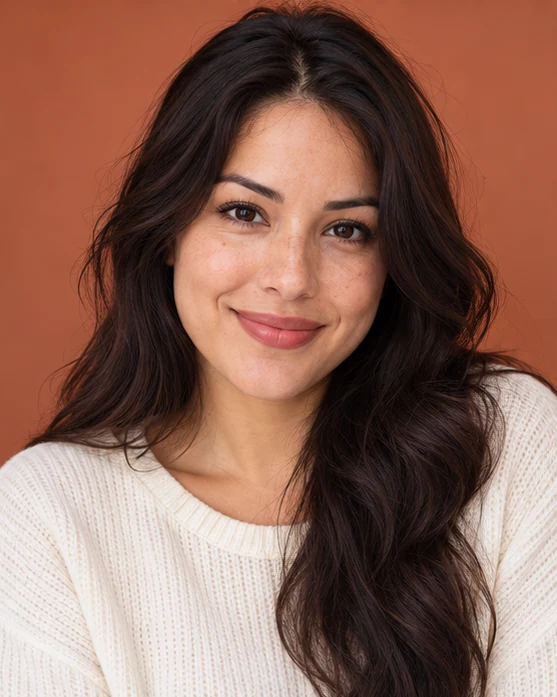
Keep subtle details in the review
Brow definition asks for restrained changes following the existing brow shape. As with any edit, inspect eyes, skin texture, teeth and hair alongside the requested change. A result can look plausible while altering details you wanted to keep. Retain your original photo so you can decide which version you prefer.
Choose a selfie direction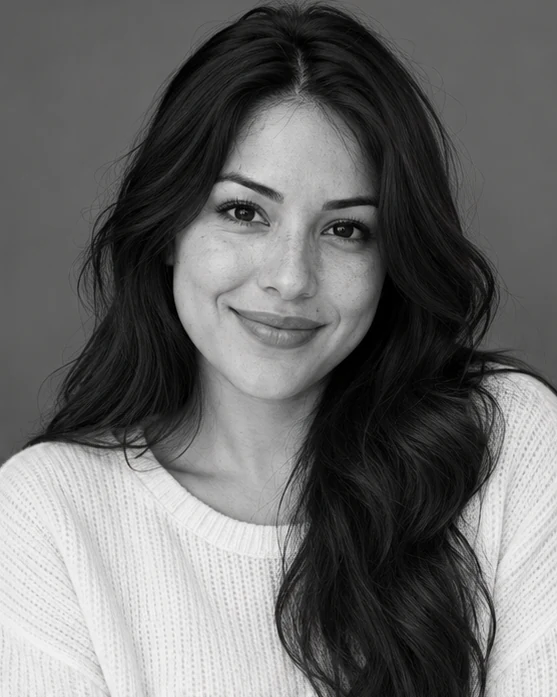
Try a different finish without changing the scene on purpose
Monochrome requests balanced black-and-white tones while keeping the original composition. It offers a different finish for a familiar portrait without intentionally adding a new setting. For a new hairstyle or an entirely different scene, use Hairstyles or AI Photos instead so the task starts with the right creative direction.
Choose a selfie directionBefore you create.
Will every original detail stay unchanged?+
No. Generative editing can change facial features, texture, hair and backgrounds even when the request is subtle. This is not pixel-preserving or lossless retouching.
Can I paint a mask over one area?+
There is no manual brush or local retouching mask. Select a direction and use the optional written request to explain the change you want.
Should I use the original or a filtered photo?+
Use the clearest original available. Heavy filters and compression can remove detail that may help guide the edit.